When the printer fights back — jams, streaks and the settings that cause them
September 6, 2026 · 6 min read
A worksheet that prints badly gets thrown away, and the child never sees it. That makes printing problems more expensive than they look, and it is worth ten minutes once to stop them happening.
Nine times out of ten it is one of four things, and they are worth checking in this order because the order is cheapest-first.
1. Scaling, which causes most of it
The single most common complaint about any printable is "it came out small with a white border round it".
That is the print dialog, not the file. Every PDF here is generated at exactly US Letter, so it needs no fitting at all — and "Fit to page" or "Shrink oversized pages", which many drivers turn on by default, will always make it smaller, because fitting a Letter page inside a Letter page minus the printer's own margins means shrinking.
Set scale to 100%, or "Actual size". Then the corridors are the width they were designed to be, which matters: the whole difficulty system is built on the corridor being a particular number of millimeters wide, and a sheet printed at 94% is a slightly harder sheet than the one you asked for.
2. Streaks and faint bands
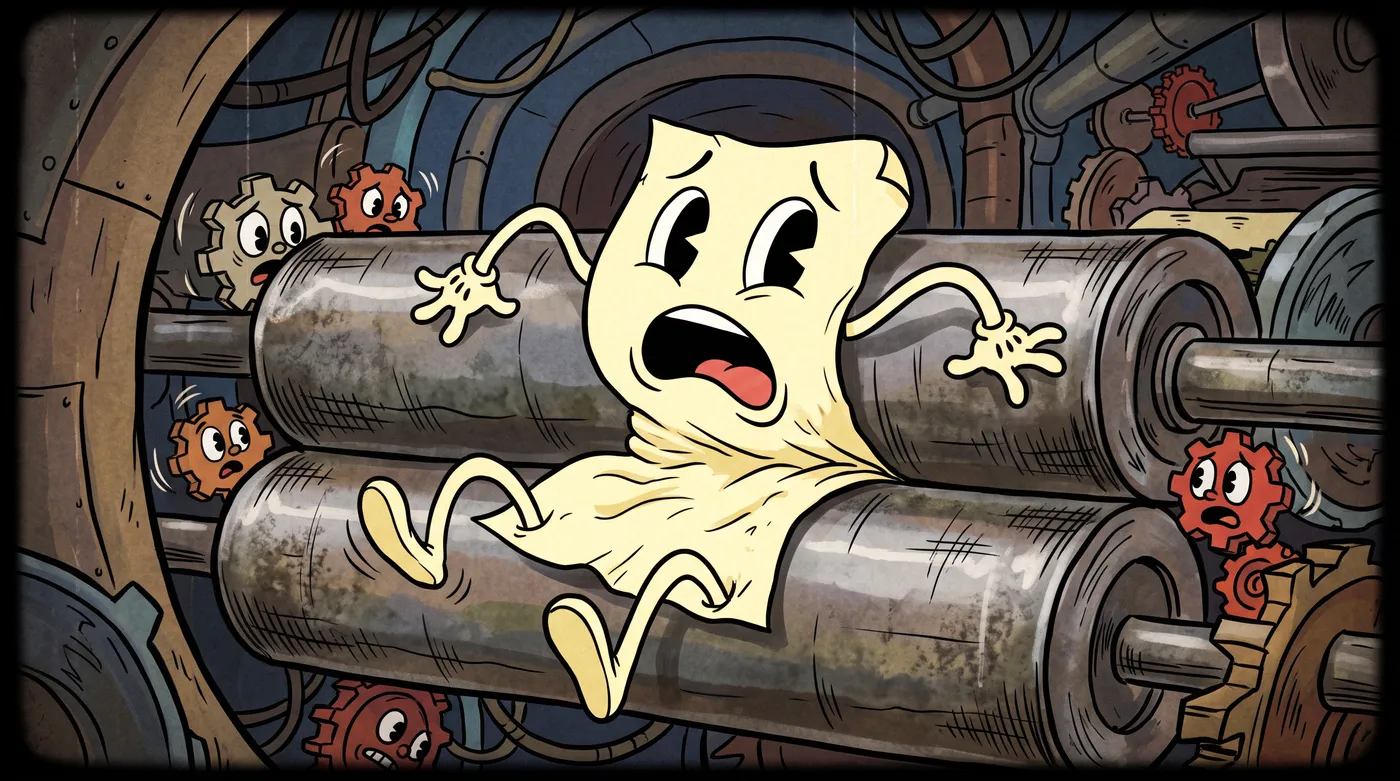
On an inkjet: faint horizontal gaps mean a partly blocked print head. Run the cleaning cycle from the printer's own front panel rather than from the computer — the on-device routine is usually more thorough. Two cycles maximum; if three do not fix it the head needs soaking, which is a different afternoon.
On a laser: streaks mean toner is low or has settled. Take the cartridge out, hold it level, rock it gently end over end five or six times, and put it back. This redistributes what is left and typically buys another thirty to fifty pages, which is often the whole batch you were trying to print.
Neither of these is a reason to buy a cartridge. Both are worth doing before you do.
3. Jams, which are nearly always the paper
Printers get blamed for jams that the paper caused.
Tray level. A nearly empty tray lets sheets skew as they are picked; an overfull one makes the roller grab two at once. Somewhere between a quarter and three quarters full is the sweet spot, which is why jams cluster at the end of a long batch.
Fan the stack. Paper that has sat in a warm room sticks to itself. Riffle the edge before loading. This takes two seconds and prevents a genuinely large fraction of double-feeds.
Humidity. Damp paper curls, and curled paper jams. A ream that has been open on a shelf in a bathroom or a garage for three months is the problem, not the printer.
Pull jams forward, in the direction of travel. Pulling a sheet backwards through the rollers is how a jam becomes a repair.
4. Ink, and the setting that actually saves it
There is a black & white (ink saver) toggle on every generator here, and it is worth using rather than selecting grayscale in the print dialog.
The difference is that the toggle changes the document before it is rendered: colored elements are replaced with grays chosen so that everything stays legible and distinct. The driver's grayscale mode desaturates whatever it is given, which turns a mint band and a terracotta arrow into two similar muddy grays — technically monochrome and considerably less useful.
For a class set, that toggle plus a rocked cartridge is usually the difference between one print run and two.
Lifehack: print one sheet before the batch. Every time. It costs one page and it catches the scaling, the streak and the empty tray before they cost you thirty. This is the single highest-value habit on this page and nobody does it.
The settings worth saving
If your printer dialog lets you save a preset, make one for worksheets:
- Scale: 100% / Actual size
- Color: grayscale off — use the generator's own black & white toggle instead
- Duplex: off for anything a child will write on, since ink on the back shows through on cheap paper
- Quality: normal, not best. Best is slower, uses more ink, and makes no visible difference to a line drawing
Paper
Ordinary 80 gsm copier paper is correct for these sheets. Heavier stock is nicer to write on and worth it for something going on a wall, but it is not necessary and it doubles the cost of a class set.
The one place it matters: if a child is going to color over a maze with felt tips, 100 gsm stops the bleed-through. For pencil, ordinary paper is fine.
Try it yourself
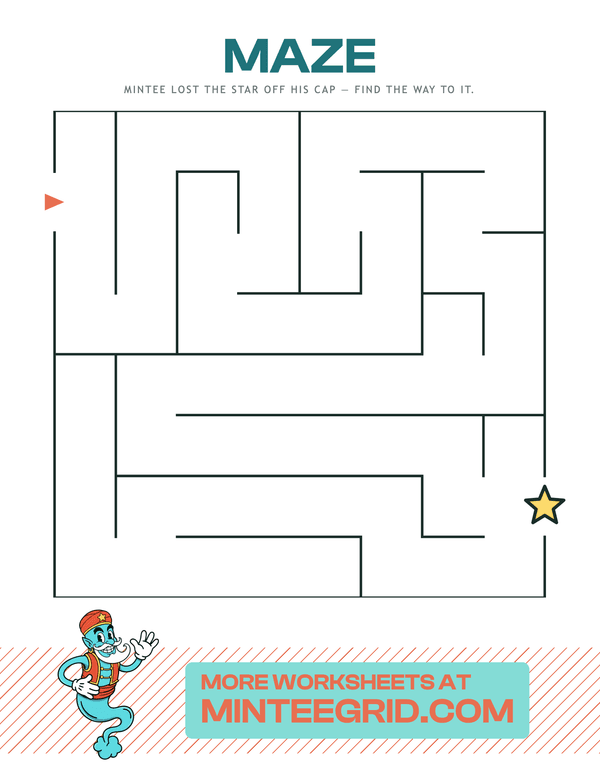
Classic Maze
One way in, one way out — and never the same maze twice. Mazes · 3+ years.
Related
- Printing tips for crisp sheets — the settings side in more detail
- Printable mazes for a classroom — batch printing without a second run
- Name mazes for a whole class — twenty-five sheets, one trip to the printer
- Why worksheets beat screens for practice — the case for paper at all
FAQ
Why does my printout have faint horizontal streaks?
On an inkjet, a partly blocked print head — run the head-cleaning cycle from the printer's own menu, not the computer's. On a laser, the toner is low or unevenly distributed; take the cartridge out, rock it gently end to end, and put it back. That buys another fifty pages or so.
Why is my worksheet printing smaller than the page?
Almost always 'Fit to page' or 'Shrink oversized pages' in the print dialog. Our PDFs are already exactly US Letter, so any scaling makes them smaller and adds a white border. Set scale to 100% or Actual size.
How do I print worksheets without wasting ink?
Turn on the black and white option before generating rather than choosing grayscale in the print dialog. It replaces the colored elements with tuned grays designed to stay legible, instead of letting the driver desaturate colors into mud.
Why does my printer jam on the last few sheets of a batch?
The stack in the tray is too low or too high. Both cause misfeeds — a nearly empty tray lets sheets skew, an overfull one makes the roller take two at once. Keep it somewhere between a quarter and three quarters full.